If you want to learn how to install IPTV on Roku, you can stream compatible IPTV content using a supported mobile device. Because Roku has limited support for traditional IPTV players and M3U applications, one practical option is to use Web Video Caster on Android or iOS and cast supported content to your Roku device.
The setup is simple: install Web Video Caster on your smartphone or tablet, add your IPTV playlist or supported streaming source, and cast the available content to Roku. For a smooth connection, make sure both your mobile device and Roku are connected to the same Wi-Fi network.
Once connected, you can stream compatible live TV and other IPTV content directly to your Roku through your mobile device.
Follow these steps to install IPTV on Roku and start streaming:
To begin, download and install the Web Video Caster app on your Android or iOS device. Once you have installed the app, open it to proceed with the setup.
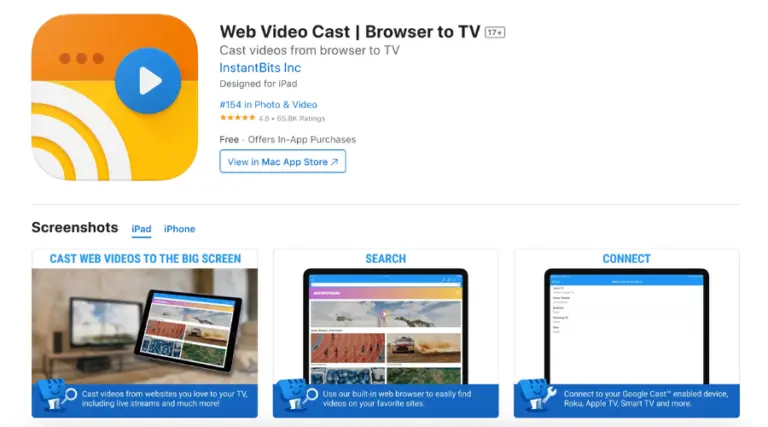
Once you open the app, tap the three lines in the top-left corner to access the sidebar menu. Then, choose IPTV from the available options to set up the IPTV configuration within the app.
Tap the + icon to open the blank field under “IPTV address.” Paste the M3U URL provided by your IPTV service into this field. You can also name your IPTV list (e.g., IPTV2025) for easy access.
Close the sidebar, then tap the Cast icon in the top-right corner-it appears as a TV screen with signal waves. Choose your Roku device from the list of available options to start casting IPTV. Make sure both your smartphone and Roku are connected to the same Wi-Fi network, then tap Done to proceed.
Open the IPTV section in the Web Video Caster app and choose the IPTV account you configured in Step 3. Give it a few seconds for the playlist to load, then select your Roku device and tap Play to start streaming IPTV content.