If you’re looking to install IPTV on a Smart TV, you’ve come to the right place. The setup process is simple and only takes about 5–10 minutes. In this guide, you’ll learn everything you need—from selecting the right IPTV app to configuring it for smooth, uninterrupted streaming.
IPTV (Internet Protocol Television) lets you stream live TV channels, movies, and TV series directly on your Smart TV using an internet connection. With a compatible IPTV app and valid subscription details, you can easily access live and on-demand entertainment from your television.
Whether you have a Samsung, LG, Sony, or another compatible Smart TV, this guide walks you through the IPTV installation and setup process step by step, helping you get started quickly and enjoy smooth streaming.
Before you install IPTV on Smart TV, you’ll need to choose a reliable IPTV app. Here are some of the top options:
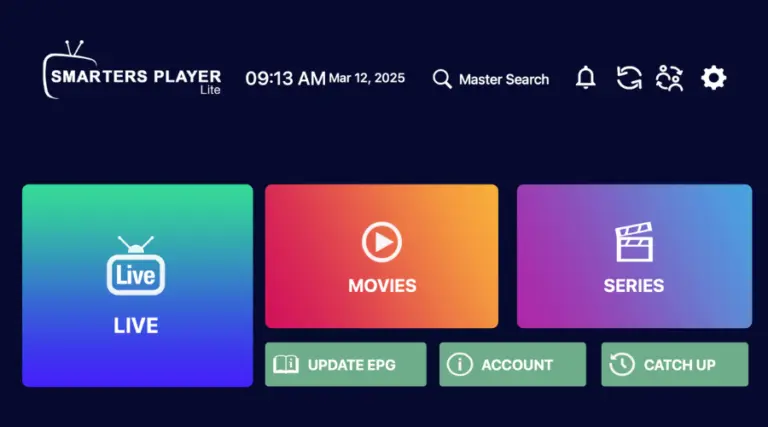
IPTV Smarters Pro (Free for life)
Features: User-friendly interface, free to use, and easy setup.
Limitations: Occasional glitches and limited features compared to paid apps.
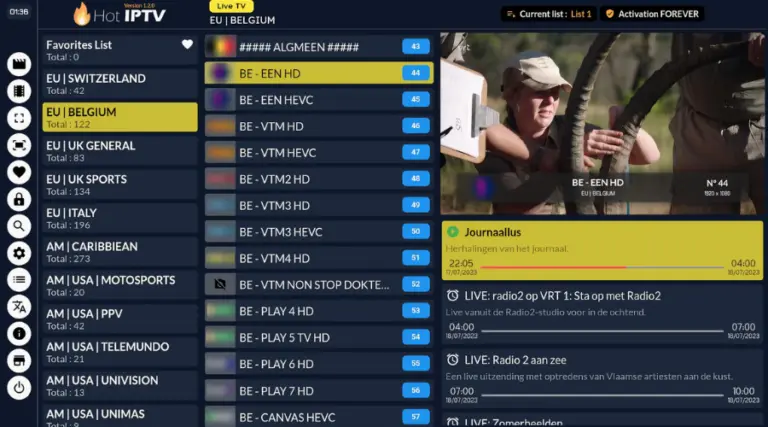
HOT IPTV (Paid) – Official Site
Recommendation: Smooth interface, 14-day free trial, and affordable at just 5 euros per year.
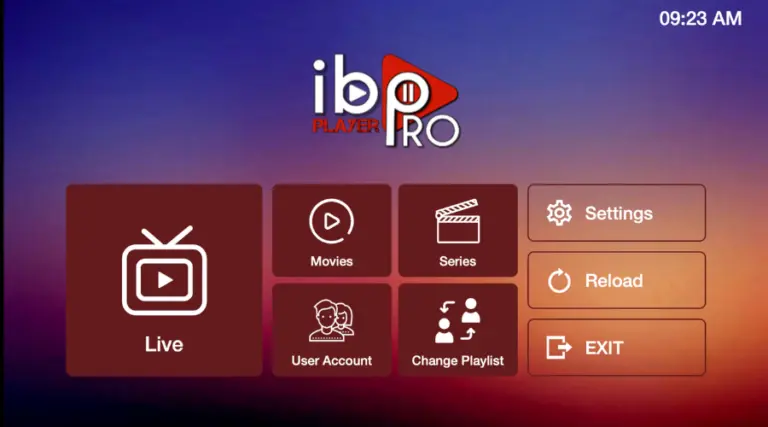
IBO Player (Paid) – Official Site
Description: Popular and reliable, though it may experience occasional downtime.
Other Options for Older Smart TVs:
Apps: Smart One IPTV, Duplex IPTV, Net IPTV, SS IPTV, Smart IPTV
Note: These apps have similar setups but may have limited memory (e.g., Smart IPTV).
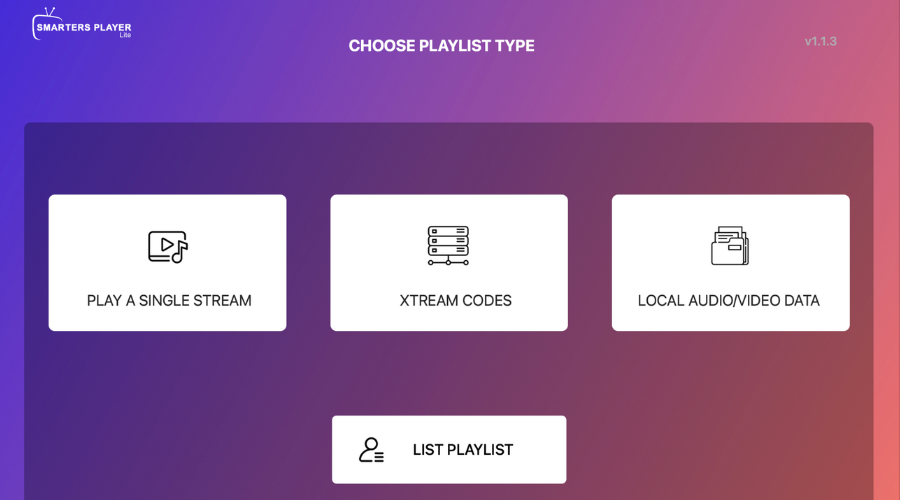
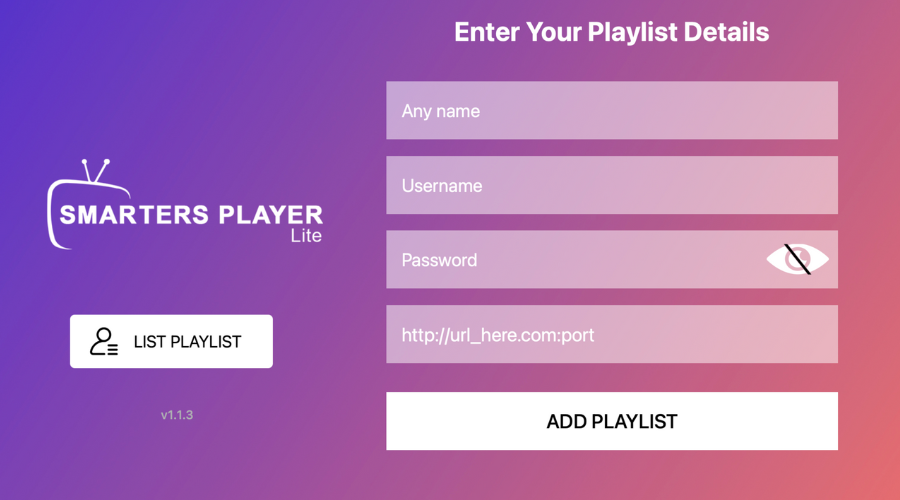
Fill in the following fields:
4. Troubleshooting:
If the setup doesn’t work, ask your IPTV provider for a DNS link compatible with the app.
Ensure the server URL starts with http:// and not https://.
1. Download the App:
Go to your Smart TV’s App Store and search for HOT IPTV (or any other paid app like IBO Player Pro).
Install and open the app.
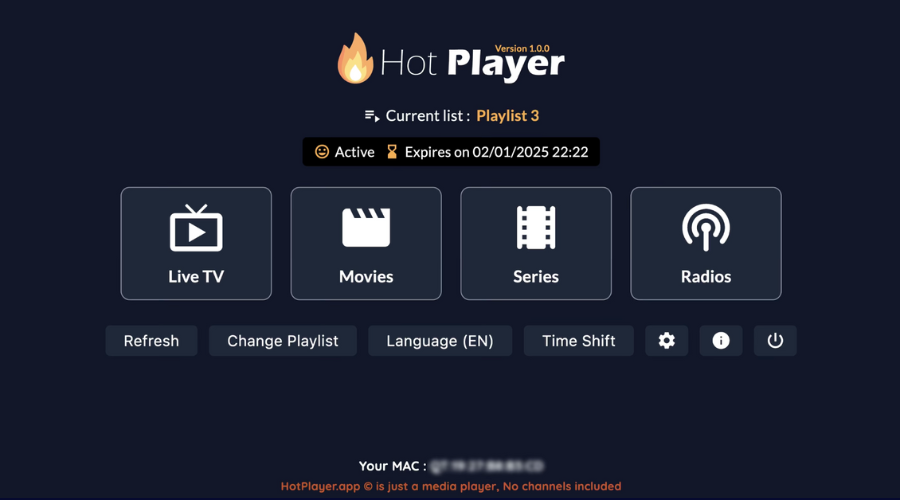
2. Note the MAC Address:
After opening the app, note the MAC address displayed on the screen.
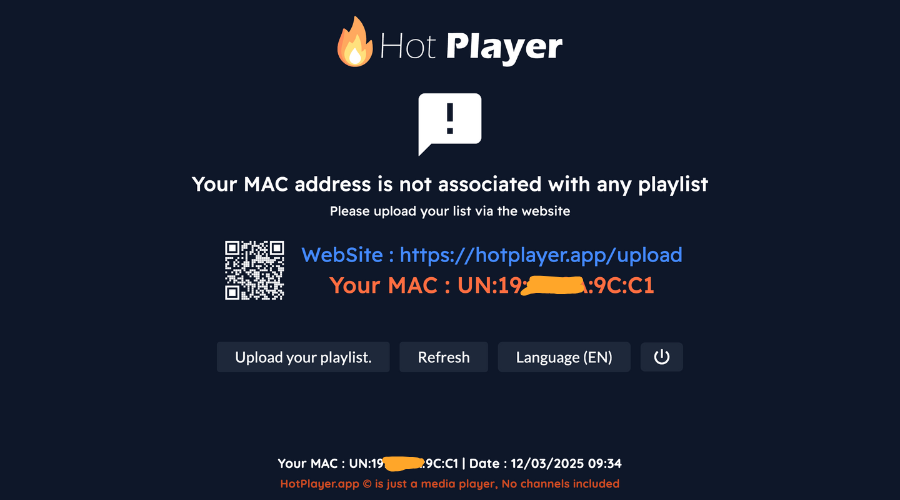
3. Send Your MAC Address:
Option 1: Send your MAC address, app name, and payment email/order ID to your IPTV provider via WhatsApp.
3. Visit the HOT IPTV Website:
Go to the link shown in the HOT IPTV app: https://hotplayer.app/upload.
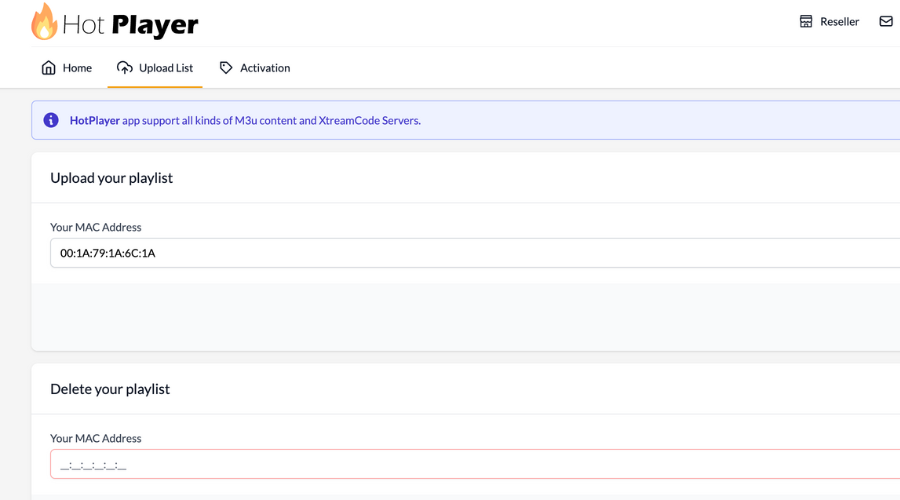
3. Enter MAC Address and M3U Link:
Type in your MAC address and press NEXT.
3. Save and Restart:
Click Save, then restart the app to start streaming. anything).
Installing IPTV on a Smart TV is simple when you follow the correct setup steps. Whether you use IPTV Smarters Pro, HOT IPTV, IBO Player, or another compatible IPTV app, you can quickly connect your subscription and access available live TV channels, movies, and series.
Choose the installation method that matches your Smart TV model and IPTV player, install the app, and enter your subscription credentials to complete the setup. For smoother IPTV streaming, use a stable internet connection and optimize your network if you experience buffering or playback issues.
If you need help during installation or setup, contact your IPTV provider through its official support channels for assistance.
Start streaming and enjoy your IPTV experience!