
Table of Contents
A successful Xtreme HD IPTV Firestick download is not really about pressing one download button. The complete setup includes preparing the Fire TV, choosing a compatible player, using a trustworthy installation route, entering the subscription details correctly, organizing the channel library, and then testing the device under normal viewing conditions. When those pieces are handled in the right order, setup is usually much easier to understand and later troubleshooting becomes far more precise.
The biggest mistake is treating every problem as an installation problem. A player can install correctly while the login details are wrong. The account can authenticate while weak Wi-Fi causes buffering. The service can stream normally while an older Fire TV feels slow because storage is nearly full. This guide rebuilds the Xtreme HD IPTV Firestick download process around those separate stages so you can identify where a problem actually begins instead of repeatedly deleting and reinstalling the same app.
Quick Answer: How Does Xtreme HD IPTV Firestick Download Work?
The Xtreme HD IPTV Firestick download starts by preparing your Fire TV, confirming which compatible IPTV player or app you should use, and installing it through the simplest trusted route available. Search the Amazon Appstore first when the recommended player is available there. If a verified APK is genuinely required, use only the source identified by the provider or original app developer. After installation, enter your own account details, allow the channel list to load, create a small favorites list, and test several streams before choosing a longer subscription.
Before starting, read the Xtreme HD IPTV installation guide. If you have not subscribed yet, you can also review the channel list, use the free trial when available, and compare the current pricing plans after the Fire TV setup has been tested.
Understand the Firestick Setup Map
It helps to think of the Xtreme HD IPTV Firestick download as four separate layers. The Fire TV is the hardware. The IPTV player is the application that organizes and plays content. The subscription supplies the account or playlist details. The home network carries the stream. If one layer fails, the symptoms can appear inside the same television interface even though the cause belongs somewhere else.
| Setup Layer | What It Controls | Typical Problem |
|---|---|---|
| Fire TV hardware | App speed, storage, decoding | Slow menus, crashes, low storage |
| IPTV player | Login screen, EPG, favorites, playback controls | App error or configuration issue |
| Subscription | Account access and channel streams | Rejected credentials or unavailable content |
| Home network | Connection carrying the stream | Buffering, packet loss, weak Wi-Fi |
This separation is important because a new Xtreme HD IPTV Firestick download will not solve every possible problem. If the password is wrong, reinstalling the player changes nothing. If the Fire TV is almost full, changing the subscription does not create storage. If the Wi-Fi signal is weak, installing three different IPTV players usually makes the device more cluttered without fixing the network.
Prepare the Fire TV Before Installing Anything
The cleanest the Firestick setup begins before any application is installed. Restart the Fire TV, make sure it is connected to the normal home network, check for pending Fire OS updates, and inspect available storage. Streaming apps need room not only for the application itself but also for cache, guide data, artwork, and future updates. A device with very little free space can feel slow even when the IPTV service is working correctly.
Keep the subscription or trial credentials nearby, but do not expose them in screenshots or public messages. Depending on the recommended player, you may need a username, password, server address, playlist URL, or another account format. Having the information ready before the Xtreme HD IPTV Firestick download makes remote typing much easier because you do not need to search through old messages halfway through setup.
Why Storage and Fire OS Matter
Older Fire TV devices can accumulate unused applications and cached data over time. When storage gets tight, app launches can slow down, updates may fail, and large playlists can take longer to populate. Checking storage before the Xtreme HD IPTV Firestick download gives you a known-good starting point. Remove apps you no longer use and restart the device before assuming IPTV itself is responsible for poor responsiveness.
Choose the Safest Installation Route
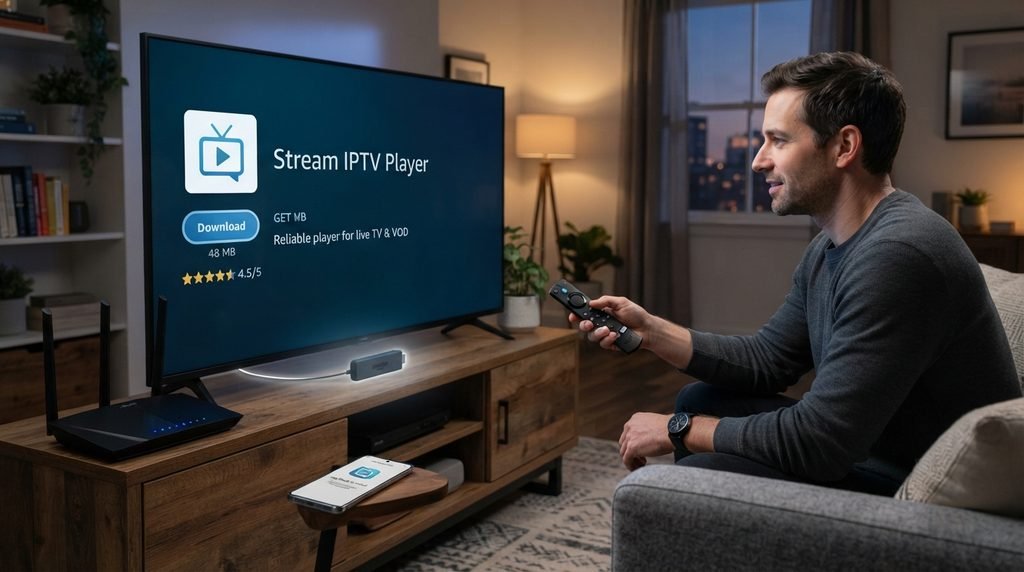
The simplest Xtreme HD IPTV Firestick download route is usually the one that requires the fewest unnecessary steps. If the compatible IPTV player recommended for the subscription is available through the Amazon Appstore, search for the exact player name and install it there. That route is familiar, easy to manage, and avoids downloading unrelated files from third-party pages.
Verify the application before installing because similar names can lead to completely different players. The correct player must support the login format supplied by the subscription. If you install the wrong app and it shows an unfamiliar portal or activation screen, the problem may simply be that you selected a different application. A clean Xtreme HD IPTV Firestick download uses one compatible player rather than filling the Fire TV with several nearly identical apps.
Why the Appstore Route Is Preferable When Available
A normal Appstore installation reduces the number of security decisions you need to make and generally makes updates easier to handle. It also lowers the chance of installing a renamed or modified package from an unknown source. When the correct player exists in the store, making the the installation more complicated usually provides no practical advantage.
When an APK or Downloader Route Is Actually Needed
Some compatible players may not be listed in the Amazon Appstore for every device or location. In that situation, the Xtreme HD IPTV Firestick download may involve sideloading a verified APK. Sideloading is simply an alternative installation method; it should not become an excuse to trust random download pages. The package should come from a source you can verify, such as the provider’s installation instructions or the original application developer.
Downloader codes can make a long URL easier to enter with a remote, but the short code itself does not prove anything about the destination. If the Xtreme HD IPTV Firestick download instructions include a Downloader code, confirm that exact code through a source you already trust and check the destination before installing. Avoid codes copied from random comments, social-media posts, forums, or unrelated file-sharing pages.
Keep Sideload Permissions Narrow
If Fire TV requires permission to install an outside application, enable only what the legitimate setup needs. Once the Xtreme HD IPTV Firestick download is complete, turning unnecessary installation permissions back off is a sensible habit. The goal is to get the correct player onto the device, not to permanently weaken the Fire TV’s normal protections.
Enter Subscription Details Without Creating Login Errors
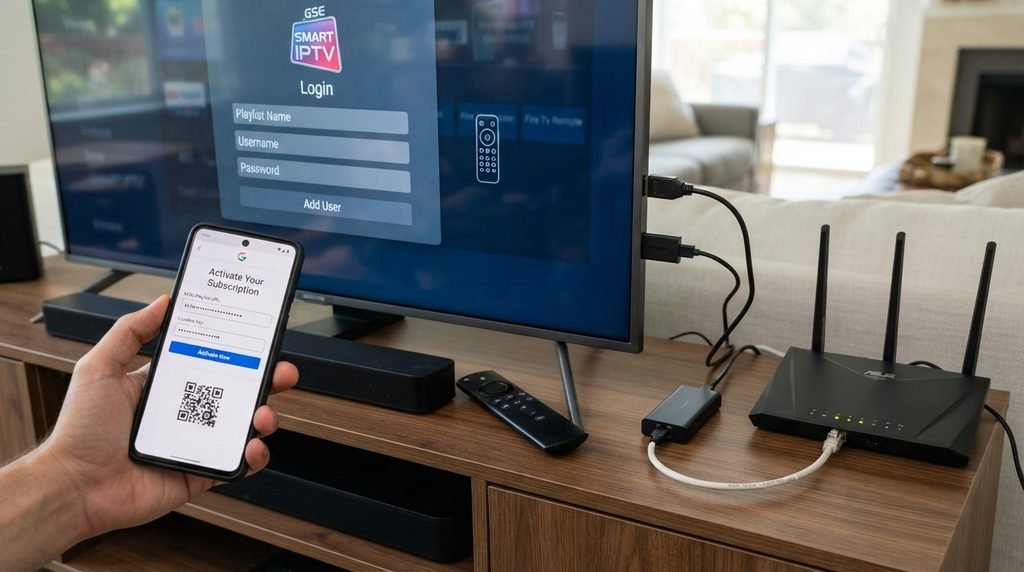
After the player is installed, the Xtreme HD IPTV Firestick download moves from installation to account configuration. Open the player and select the login method that matches the information supplied with your subscription. Different IPTV applications use different formats, which is why the current Xtreme HD IPTV installation guide matters more than assuming every player uses the same fields.
Fire TV remote typing can make small mistakes surprisingly easy. Pay attention to uppercase and lowercase letters, the number zero versus the letter O, punctuation, and long server addresses. Check for accidental spaces at the beginning or end of each field. If the the Fire TV setup produced a working app but the login is rejected, recheck the credentials before reinstalling anything.
Keep Account Information Private
Do not post usernames, passwords, server URLs, or playlist addresses publicly while asking for help. If you share a screenshot, hide the sensitive areas first. Good credential handling is part of the Xtreme HD IPTV Firestick download process because the account is separate from the application and may be usable on other compatible devices.
What to Do During the First Successful Session
Once the login works, give the player time to finish loading its channel groups, guide information, artwork, and other account data. Large libraries can take longer during the first synchronization. Repeatedly closing the app while it is populating can make the Xtreme HD IPTV Firestick download appear unstable even when the player simply needs time to complete its initial setup.
When the library is ready, do not immediately browse every category. Start with the channels that affect your decision. Compare the content you see with the current Xtreme HD IPTV channel list, locate your important sports, news, entertainment, movie, local, or international channels, and save the ones you actually use.
Create a Small Favorites List Immediately
A large IPTV catalog can become frustrating on a television remote. Creating a focused favorites group during the first session turns the result of the Xtreme HD IPTV Firestick download into something easier to use every day. Twenty or thirty relevant channels are often more practical than scrolling through thousands of options every evening.
Test Streaming Before You Call the Setup Finished
Successful login only proves that the application and account can connect. It does not prove that the Xtreme HD IPTV Firestick download performs well under real viewing conditions. Open several important channels from different categories and leave them playing for meaningful periods. Check startup time, audio synchronization, channel switching, picture stability, and whether the app remains responsive after extended use.
Test at the times you normally watch. If the household uses television heavily in the evening while phones, laptops, consoles, and other streaming devices share the network, reproduce that situation. A perfect five-minute test at a quiet time is less useful than seeing how the the IPTV setup behaves during the busiest normal part of your day.
Test Wi-Fi Before Reinstalling the Player
If buffering appears, try unrelated channels first and compare another streaming application on the Fire TV. If everything struggles, investigate the network. Walls, distance from the router, interference, and heavy household traffic can all affect Wi-Fi. When practical, comparing Ethernet with Wi-Fi can be informative. A large improvement through Ethernet suggests that the Xtreme HD IPTV Firestick download itself may be fine while the wireless path needs attention.
Judge HD and 4K on the Actual Fire TV
High-resolution labels should be tested rather than assumed. A 4K-capable Fire TV, suitable television, appropriate settings, stable network, compatible player, and high-resolution source all contribute to the final image. Completing an Xtreme HD IPTV Firestick download on a 4K device does not mean every stream will be native 4K or that every higher-resolution feed will look better than a strong Full HD source.
Compare real content on the television you plan to keep using. Sports are useful because motion exposes frame drops, while films can reveal compression in dark scenes and fine details. A stable Full HD stream that plays for two hours without interruption can provide a better experience than a higher-resolution feed that freezes every few minutes. Judge the Xtreme HD IPTV Firestick download by sharpness, motion, audio, startup time, and stability together.
Older and Newer Fire TV Hardware Can Behave Differently
Fire TV generations differ in processing power, storage, memory, networking, and video capability. An older model may handle ordinary HD streams well while struggling with a demanding player or large EPG. If the same account works smoothly on another device, hardware performance deserves attention before you repeat the Xtreme HD IPTV Firestick download.
Use the Free Trial as a Firestick Stress Test
A trial is most valuable when it is used as a real test of the exact setup you intend to keep. The Xtreme HD IPTV free trial can let you complete the the download process on your own device before committing to a longer subscription. That tells you far more than screenshots of another user’s television or a review written on different hardware and a different network.
Use the trial deliberately. Check essential channels, live sports when relevant, longer movies or programs, EPG, favorites, app restarts, channel switching, HD and available 4K content, and evening performance. If another household member will use the Fire TV, let them navigate the interface too. A technically perfect Xtreme HD IPTV Firestick download is less useful if the people watching every day find the player difficult to use.
| Trial Test | What You Learn | Warning Sign |
|---|---|---|
| Essential channels | Whether the library fits you | Important channels missing or unreliable |
| Long viewing session | Real stability | Repeated buffering or crashes |
| Live sports | Peak-demand performance | Frequent interruptions |
| Remote navigation | Daily usability | Slow or confusing interface |
| App restart | Reconnection behavior | Account repeatedly fails to reload |
| Evening Wi-Fi | Normal home conditions | Network becomes unstable |
Maintain the Fire TV After Installation
A good Xtreme HD IPTV Firestick download should remain easy to maintain. Keep Fire OS reasonably current, update the IPTV player from the same trusted source used for installation, and remove applications you no longer need. A nearly full Fire TV can become slower over time, so storage should remain part of routine maintenance rather than something you check only when the app stops working.
Avoid installing multiple duplicate players every time a channel buffers. That creates extra caches, configuration files, and confusion. One clean Xtreme HD IPTV Firestick download with a compatible player is easier to understand than five apps containing slightly different versions of the same account.
Clear Cache Before Clearing Full App Data
If the player feels slow, restart the Fire TV first. Clearing cache may help in some situations, but clearing full app data can remove stored login information, favorites, and other configuration. Know the difference before using a reset option. Rebuilding a working Xtreme HD IPTV Firestick download because of an unnecessary data wipe creates extra work.
Troubleshoot Xtreme HD IPTV Firestick Download by Symptom
The fastest troubleshooting method is to identify the first thing that fails. Does the app refuse to install? Does it install but reject the login? Does the account load while channels buffer? Does the player work but feel slow? Those symptoms belong to different parts of the Xtreme HD IPTV Firestick download process and should not receive the same fix.
| Symptom | Likely Area | First Check |
|---|---|---|
| App will not install | Storage, compatibility, source, permission | Restart, check storage and app source |
| Login is rejected | Credentials or account | Retype details and confirm trial/subscription |
| One channel buffers | Individual stream | Test several unrelated channels |
| Many channels buffer | Network, device, player, or service | Compare another streaming app |
| App feels slow | Fire TV storage or hardware | Restart and inspect free space |
| Categories are missing | Playlist or account refresh | Refresh and compare current channel list |
The IPTV App Will Not Install
Check storage, restart the Fire TV, and confirm that the application version supports your device. If the the setup uses a verified APK, make sure only the necessary installation permission is enabled. Repeatedly trying an unknown file because the filename looks familiar is not a useful troubleshooting step.
Login Details Are Rejected
Retype every field carefully, check for extra spaces, and verify that the trial or subscription is active. Make sure the selected login method matches what the provider supplied. A fresh Xtreme HD IPTV Firestick download cannot correct a wrong password or server address.
Channels Open but Keep Buffering
Test several channels, restart the player, and compare other streaming apps on the same Fire TV. If possible, compare another network path or Ethernet. If the whole device has poor internet performance, fix that first. The Xtreme HD IPTV Firestick download may have completed correctly even though the home connection is unstable.
The App Opens but Feels Very Slow
Restart the Fire TV and inspect storage. Remove unused applications and clear unnecessary cache where appropriate. Older hardware may also be slower when a large channel list and EPG are loaded. Device performance should be evaluated before repeating the Xtreme HD IPTV Firestick download.
Channels or Categories Are Missing
Refresh the playlist or reconnect the account using the functions available in the player. Compare what appears with the channel list. Because lineups can change, check current information instead of relying on an old screenshot. One missing category is not a reason to rebuild the whole Xtreme HD IPTV Firestick download from zero.
Choose a Subscription Only After Testing
Once the the Fire TV installation has been tested on your actual Fire TV, compare the Xtreme HD IPTV pricing plans. Short subscriptions generally give new users more flexibility, while longer plans may reduce the effective monthly cost. The correct choice depends on how much evidence you already have that the setup works for your household.
A short trial is valuable, but it cannot reproduce every future sports event, router condition, or device update. Someone who has only just completed the Xtreme HD IPTV Firestick download may reasonably prefer a shorter initial commitment. A user who has already tested the service across multiple days, events, and viewing sessions has more information for deciding whether a longer plan makes sense.
| Factor | Shorter Plan | Longer Plan |
|---|---|---|
| Upfront payment | Lower | Higher |
| Flexibility | Greater | Lower |
| Effective monthly cost | Often higher | Often lower |
| Best fit | New or uncertain user | Tested user |
| Commitment risk | Lower | Higher |
Common Xtreme HD IPTV Firestick Download Mistakes
The first mistake is installing the first APK or Downloader code found in a search result. Familiar branding does not prove a file is authentic. The second mistake is assuming every buffering problem means the Xtreme HD IPTV Firestick download was performed incorrectly. Weak Wi-Fi, a full Fire TV, old hardware, household traffic, or one bad stream can produce similar symptoms.
Another mistake is clearing full app data without saving the login details, which can remove a working configuration. Users also make setup harder when they install several duplicate players instead of testing one compatible application properly. Finally, buying the longest plan before checking Fire TV performance creates unnecessary commitment. The Xtreme HD IPTV Firestick download should be followed by real testing before price becomes the deciding factor.
A Short Safety Check Before You Finish
- Use the Amazon Appstore first when the correct compatible player is available.
- Verify any APK or Downloader destination through a source you trust.
- Keep Fire OS updated and maintain free storage.
- Protect usernames, passwords, server URLs, and playlist information.
- Turn unnecessary sideload permissions back off after setup.
- Test the service before choosing a long subscription.
These habits make the Xtreme HD IPTV Firestick download easier to maintain and reduce the chance that an installation shortcut creates a bigger problem later.
Frequently Asked Questions About Xtreme HD IPTV Firestick Download
How do I complete Xtreme HD IPTV Firestick download?
Begin with the installation guide, prepare the Fire TV, and identify the compatible player for your subscription. Search the Amazon Appstore first when appropriate, install the player, enter your account information carefully, and let the channel list finish loading. A complete the installation process includes testing the service after installation rather than stopping as soon as the app opens.
Can I try Xtreme HD IPTV on Firestick before paying?
When trial access is available, the Xtreme HD IPTV free trial can help you evaluate the exact Fire TV, television, network, and player you intend to use. Complete the Xtreme HD IPTV Firestick download on the real viewing device and test normal household conditions before considering a longer plan.
Why did my favorites disappear?
Favorites may be stored locally by the IPTV player. Clearing full app data or reinstalling the application can remove them. Before rebuilding the Xtreme HD IPTV Firestick download, check whether the player offers a backup, restore, or sync option.
Should I clear cache or app data first?
Restarting the Fire TV is usually the safest first step. Clearing cache may be appropriate in some cases, while clearing full app data can remove credentials and settings. Protect the working Xtreme HD IPTV Firestick download by avoiding a full reset unless there is a specific reason for it.
Which subscription should I choose after installation?
New users should test first and then compare the current subscription pricing. A shorter plan offers more flexibility, while a longer plan may reduce the effective monthly cost. The Xtreme HD IPTV Firestick download should prove itself on your channels, device, and network before you make a larger commitment.
Why is the IPTV player slow even though streams work?
If playback works but menus feel slow, check Fire TV storage, background apps, and hardware age. Large playlists and guide data can place more load on older devices. That kind of interface slowdown does not automatically mean the Xtreme HD IPTV Firestick download or subscription is unreliable.
Final Verdict: Xtreme HD IPTV Firestick Download in 2026
The Xtreme HD IPTV Firestick download can be straightforward when the process is treated as more than an app installation. Prepare the Fire TV first, use the safest compatible installation route, enter the account details carefully, allow the library to synchronize, organize important channels, and then test real streaming conditions. Each stage gives you information about a different part of the setup.
The most useful approach is to read the Xtreme HD IPTV installation guide, review the channel list, use the free trial when available, and compare pricing plans only after the Xtreme HD IPTV Firestick download has been tested on your normal television and network.
When the player launches cleanly, your essential channels load, the remote navigation feels comfortable, longer sessions remain stable, and the Fire TV performs well during your normal viewing hours, you have a much stronger basis for deciding whether the subscription belongs in your home. That is the real purpose of a good Xtreme HD IPTV Firestick download process: not simply getting software onto the device, but ending with a setup you can actually use and maintain.
Ready to start streaming?
Choose a subscription and get your Xtreme HD IPTV access from the official pricing page.
Live TV • VOD • Sports • EPG • Multi-device options